
IFC5 BIM Model Conversion: Converting Revit Models and Reading Properties
Discover the conversion of the BIM model to IFC5 and how it revolutionizes interoperability in the construction industry

The evolution of the IFC standard is not just a technical update, but a true paradigm shift for the construction industry. As highlighted by the latest directives from buildingSMART, IFC5 marks the definitive transition towards a BIM that perfectly integrates civil engineering and large infrastructures.
Read the following article and find out all you need to know about IFC 5 on the IFC tools to update and use it.

Example of displaying the data structure of a BIM model in IFC 5 format
Contents
Why convert a Revit model to IFC5
The transition from Revit’s proprietary format to the IFC5 standard represents the latest frontier in interoperability. IFC5 introduces a semantic revolution, expanding support for complex infrastructures and improving the management of data related to sustainability and the lifecycle of the project.
Converting a model is no longer just a need for “export,” but a strategic act to ensure that information does not remain trapped in a single software.
Collaboration between different BIM software
In a fragmented professional ecosystem, it is rare for all actors (architects, structural engineers, MEP engineers, general contractors) to use the same software platform. The conversion to IFC5 allows a model born in Revit to be perfectly integrated into structural calculation environments, energy analysis, or quantity takeoff that operate on different technological bases.
IFC5 reduces data loss during “round-tripping,” ensuring that the relationships between objects (for example, the link between a column and its foundation) remain intact even when transitioning from an authoring software to a coordination one.
Data exchange in openBIM workflows
The concept of openBIM is based on the freedom to choose work tools without compromising the quality of the final result. Exporting to IFC5 means adhering to an internationally certified standard by buildingSMART.
Unlike closed formats, IFC5 allows for granular management of properties. In an openBIM workflow, this translates into the ability to query the converted Revit model to extract exact quantities, material certifications, and performance parameters, making the data accessible to all stakeholders, including clients who do not own Revit licenses but need to monitor the informational progress of the project.
Preservation and interoperability of models over time
One of the biggest risks of “proprietary” BIM is digital obsolescence. A Revit file saved today with the latest version might be difficult to open in ten or twenty years due to lack of support for older releases.
Adopting IFC5 as a storage format ensures long-term preservation. Being a text-based format, the model content will remain readable and interpretable by any future system. Converting today means protecting the client’s informational investment, ensuring that the building’s “Digital Twin” is consultable throughout the entire Facility Management phase, regardless of advancements in design software.
To properly manage this transition and ensure that every property has been transferred without errors, it is essential to rely on advanced validation tools. Among these tools are the BIM management systems, optimized for managing IFC files, facilitating cloud collaboration for the entire lifecycle of the project.
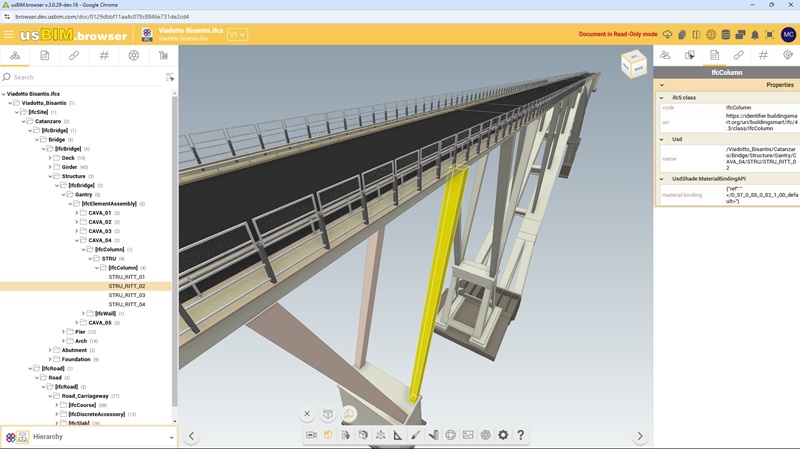
IFC 5 model of the Bisantis Viaduct-Catanzaro
How to Export a Revit Model to IFC Format
Exporting is not an automatic process, but a semantic translation that requires precision. The effectiveness of the export depends on the correct configuration of three pillars: mapping, export utility settings, and property set management.
Mapping Tables
The foundation of every export is the class mapping table. Revit must know how to translate each of its “Categories” (e.g., Walls) into a specific “IFC Class” (e.g., IfcWall):
- customization – this table can be modified (accessible from File > Export > Options > IFC Options) to ensure that non-standard objects are classified correctly;
- override – if a specific element requires a different classification than its general category, the IfcExportAs parameter is used. This allows, for example, to export a generic “Local Model” as an IfcFurniture or IfcEquipment.
IFC Export Utility Settings for Revit
The “Edit Configuration” dialog box offers several crucial tabs that determine the quality of the final file:
- general settings – here, the IFC version (e.g., IFC5 or IFC4) and file type (usually IFC or IFCZIP) are defined. A key detail is the choice of the Model View Definition (MVD), which filters information based on the model’s intended use (e.g., Coordination View for simple spatial coordination);
- additional contents – in this section, the decision is made whether to export 2D elements (lines, annotations), Revit links (if present in the project), and parts of elements (crucial for layered systems);
- Level of Detail (LOD) – the manual emphasizes the importance of setting the level of detail for geometry (Low, Medium, High). An excessively high detail for complex objects can generate excessively heavy and difficult-to-manage IFC files.
Property Set Management
The value of a BIM model lies in the data. There are several options for exporting parameters:
- export common IFC properties – includes standard parameters defined by buildingSMART (e.g., Pset_WallCommon);
- export quantity tables as property sets – this is an advanced function that transforms each Revit schedule into an IFC property set. It is the quickest way to export custom data without creating complex configuration files;
- export user-defined parameters – using an external text file, it is possible to precisely map which Revit parameters should end up in which IFC Pset.
Advanced Settings and Coordinates
A critical aspect concerns global positioning. During export, it is necessary to specify whether to use shared coordinates or the project’s base point. For interoperability in complex or infrastructural projects (where IFC5 excels), proper management of the coordinate system is the number one requirement to avoid models appearing “shifted” once loaded onto coordination platforms.
If you want to delve deeper into the subject of IFC 5 and its particularities, I recommend reading the article “IFC 5: what it is and how to manage the new standard with the IFC5 viewer“.
How to Select Objects Within an IFC Model
Selection in an IFC environment is not just a visual act (clicking on an element in 3D), but a database query operation. Since IFC manages a significant amount of data, navigating with awareness in the file structure is essential to avoid losing valuable information.
Hierarchical Structure and Organization of IFC Elements
Unlike a traditional CAD file, IFC is organized according to a strict hierarchy. Each object does not exist in a vacuum, but is “hosted” in a tree structure:
- IfcProject – the highest level (the overall project);
- IfcSites – the site or land on which the work is built;
- IfcBuilding / IfcBridge – the building or infrastructural work (greatly enhanced in IFC5);
- IfcBuildingStorey – the level or floor;
- IfcProduct– the actual object (wall, window, beam).
Understanding this hierarchy allows one to select entire sectors of the model with a single command, isolating all that belongs to a specific construction body, for example.
Filter and Select Objects by Category or Type
In a complex model, manual selection is inefficient. A BIM expert uses filters by classes.
In an advanced viewer, it is possible to instantly isolate all elements belonging to the class IfcWall (walls) or IfcDistributionElement (systems).
The IFC has precise definitions, for example, for “Types” (IfcTypeObject). This means you can select not only “all windows,” but “all windows of type X that have a specific thermal transmittance,” cross-referencing geometric data with property sets (Pset) exported from Revit.
Navigate the Model via Spatial Structure
Spatial navigation is the most intuitive method to manage the IFC model. Through the use of the project browser (or “tree view”), the user can toggle different levels (IfcBuildingStorey) on or off.
Navigating the spatial structure also means being able to “slice” the model not only geometrically (with cutting planes) but logically. For example, you can ask the software to display only the objects contained within a specific IfcSpace (void), a crucial function for those involved in Facility Management or calculating walkable areas.
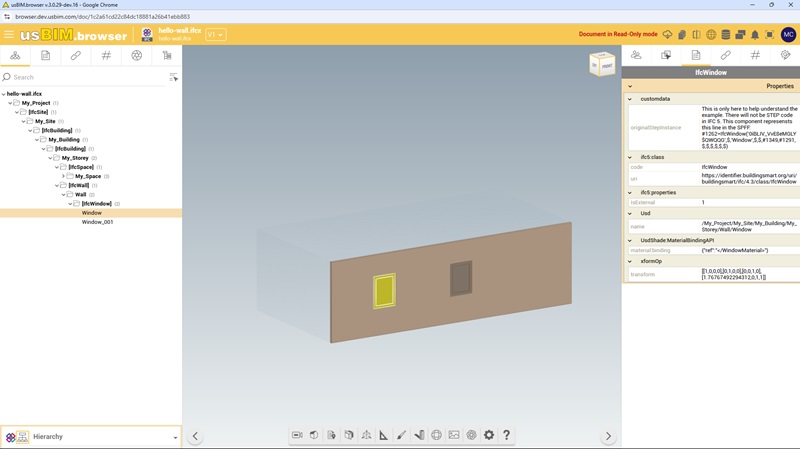
IFC 5 viewer with an example of BuildingSmart International on the data structure
The role of IFC5 in future openBIM workflows
The advent of IFC5 represents the consolidation of the openBIM vision, where data is no longer static but becomes a dynamic and universal element. While previous versions struggled to manage the complexity of projects such as bridges, tunnels, and railways, IFC5 was born to fill this gap, offering a common language for the entire built environment.
Extension to infrastructure
The main role of IFC5 is the integration of the infrastructure domain. Thanks to the introduction of specific classes for the Civil sector, designers using Revit (or similar software for the infrastructure sector) can now export road or rail models with unprecedented semantic accuracy. This means that a rail or a sleeper will no longer be “generic objects” adapted but entities endowed with standardized intrinsic properties globally.
Advanced data management and Digital Twin
IFC5 is the cornerstone on which modern Digital Twins are built. In future workflows, the model will not only serve for construction but will be the central database for IoT sensors and real-time monitoring systems.
The structure of IFC5 is optimized for handling high-frequency data streams, allowing for the connection of object properties (originally exported from the BIM model) to live performance data. This ensures that interoperability does not stop at project delivery but continues for decades during operation and maintenance (O&M).
Modularity and efficiency in data exchange (Modular IFC)
One of the historical limits of IFC has been the heaviness of files. IFC5 promotes a more modular approach: the ability to exchange only the “portions” of data necessary for a specific process (thanks to increasingly refined view definitions). This will make openBIM workflows more streamlined, facilitating collaboration on cloud platforms where loading speed and quick consultation of properties are fundamental requirements.
How to read objects and properties of an IFC5 file
Once the conversion from Revit is complete, correctly reading the data is the last mile towards project success. It is not necessary to have the software that generated the file to extract its value.
- identification of Pset (Property Sets) – by opening an IFC5 file with a certified viewer, the user can explore the property sets. Here you find crucial information: dimensional data, thermal properties, costs, temporal phases, and custom attributes mapped during export;
- querying relationships – IFC allows reading not only “what” an object is but “who it interacts with”. It’s possible to navigate between spatial containment relationships (in which room a furniture item is located) or logical connection relationships (to which plant system a valve belongs);
- data validation – reading an IFC5 file also means verifying its compliance with information requirements (EIR/information specification). Model checking tools read properties to ensure that no mandatory parameters have been omitted in the conversion from Revit.
Collaborating with an IFC5 file on usBIM
Below I describe how it is possible to collaborate on an IFC5 file directly online with usBIM.
The first step is to locate and open an IFC5 file.
Subsequently, it is possible to leverage the capabilities of usBIM.browser to begin true collaboration. In this case, it is possible to:
- send messages via the usBIM.chat app,
- share your point of view with all participants,
- select a colleague’s point of view,
- set your “live viewpoint” to a colleague,
- show the colleague all the objects you are selecting.
Finally, it is possible at any time to view all properties present on a specific element.
FAQ about IFC5
Why convert a Revit model to IFC5?
The transition to the IFC5 standard represents the latest frontier of interoperability, introducing a semantic revolution and extending support to complex infrastructures. The conversion allows for the integration of the model in structural calculation environments, energy analysis, or differing metric computing, reducing data losses during ’round-tripping’. Furthermore, it ensures long-term data preservation (Digital Twin), protecting the information investment from the obsolescence of proprietary software.
What are the pillars for proper export from Revit to IFC?
The effectiveness of the export depends on three key elements: 1. Mapping tables to translate Revit Categories into IFC Classes (e.g. IfcWall); 2. Export utility settings, where IFC version, Model View Definition (MVD), and Level of Detail (LOD) are defined; 3. Management of property groups (Property Sets), to decide which common or custom parameters to include in the final file.
How does the hierarchical structure of an IFC file work?
The IFC is organized according to a strict tree hierarchy: IfcProject (highest level), IfcSites (site/land), IfcBuilding or IfcBridge (building or infrastructure), IfcBuildingStorey (level or floor), and finally IfcProduct (the actual object like a wall or beam). Understanding this structure allows for the precise selection and isolation of entire sectors of the model.
What innovations does IFC5 introduce for infrastructures and openBIM?
IFC5 integrates the infrastructure domain (Civil sector) allowing for the management of objects such as rails or sleepers with standardized properties. It supports the creation of advanced Digital Twin optimized for IoT data flows and introduces a modular approach (Modular IFC) to exchange only specific portions of data, making openBIM workflows more streamlined and efficient on cloud platforms.
How are objects in an IFC5 file read and validated?
Reading occurs through certified viewers that allow one to: identify Psets (Property Sets) with performance and dimensional data; query the spatial and logical relationships between objects (e.g. belonging to an IfcSpace); validate data through model checking tools that verify model compliance with information requirements (EIR) and the presence of mandatory parameters.


